
Introduction
Before Symmetry can support non-European characters correctly some configuration of the host
server is required. This bulletin documents the configuration of a Windows 7 platform but the same
principles may be applied to Server 2008 R2 also.
Windows Language Packs
Microsoft Windows Language Packs are available for certain editions of Windows 7 and only available to download from the Windows Update menu in Control Panel. These are only required to display Windows menus and icons for the PC platform and are not required for the correct support of characters in Symmetry. Therefore, the download of Windows Language Packs are not documented in this bulletin.
Symmetry Language Packs
Symmetry Language Packs are available for certain languages, or distributors may choose to translate into their own language. (Translation kits are available from Technical Support upon request.)
To install and configure a Symmetry Language Pack correctly—so that it displays the translated characters and input user data fully—the configurations detailed in this bulletin must have been applied.
Why are these settings required?
The following Region and Language settings are required for the following reasons:
a) Many distributors install Symmetry onto a PC or Server that is configured to English/American by default. This will not support non-European character sets.
b) Even when the desired language has apparently been configured (perhaps by the computer vendor) further verification and changes are necessary.
c) These settings are required at the Symmetry server, and at every Symmetry Client PC where non- European characters are to be displayed or input.
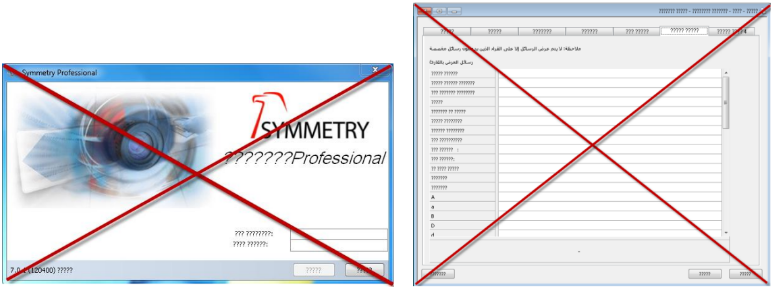
At its very worst, when these settings are ignored, Symmetry will display characters as question marks or meaningless hieroglyphics. The screen images below show an incorrectly configured Windows server and a Symmetry installation with an Arabic Language Pack.
This bulletin aims to help avoid such occurrences.
Windows Region and Language settings
Whenever possible, it is recommended that the configuration settings detailed here are set before installing Symmetry Professional edition or before installing standard SQL Server for Symmetry.
Performing these configurations before Symmetry (and/or SQL) ensures that SQL selects the correct
Collation (for its character sort order, etc). However, this is not critical for correct character support in
Symmetry. If making these changes after the installation of Symmetry it is advised to begin at the Symmetry server, and then configure the Windows platforms of any Symmetry Clients after.
Description and example settings for Arabic
The following example describes the configurations for Arabic character support on a Windows 7
platform. (Screen images for the recommended Chinese and Hebrew settings are included in the
following sections.)
Log into Windows with full Administrator permissions and select the Region and Languages menu
from the Windows Control Panel sub menu.
From the Formats tab, select the desired language from the Format drop-down menu. In the example
below Arabic (Oman) has been selected.
Press Apply.
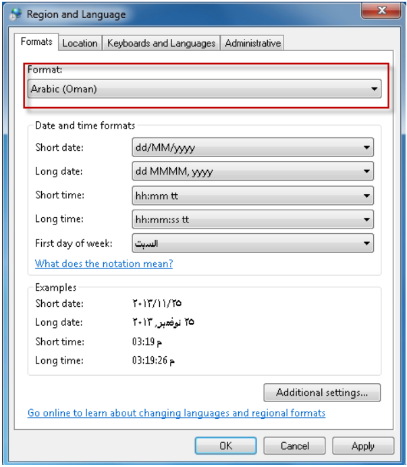
The above selection will automatically add a new Keyboard language that can be set as default from the Keyboards and Languages tab if desired – this is optional.
The Current Windows user settings are now correct for the desired language support. However, it is really important that these settings are copied to the System Accounts as these are used by Symmetry services. (There is no other way to set the language for a System account.)
In the screen image to the right, below, the language setting for the Welcome screen and New user
accounts is set to English. This should be changed to the same language as the Current user.
Click the Administrative tab then the ‘Copy Settings...’ button.
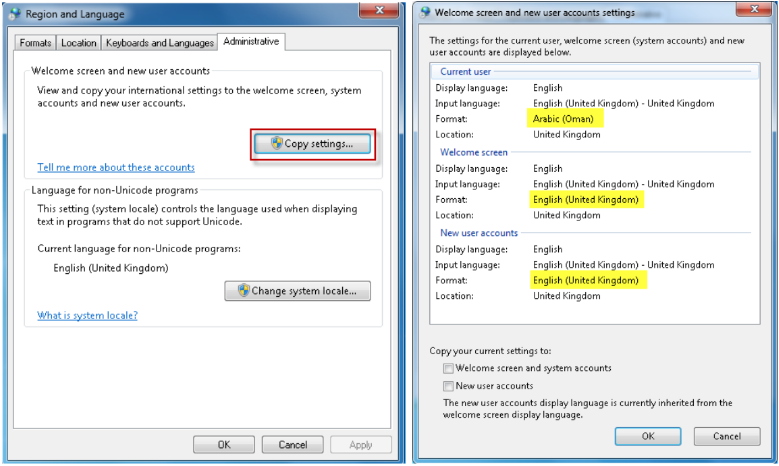
Select the check mark for both of the boxes shown; i.e. ‘Welcome screen and system accounts’, and
‘New user accounts’.

Click OK once to close this box
Select the desired language then click OK
Windows must now be restarted for the change to take effect.
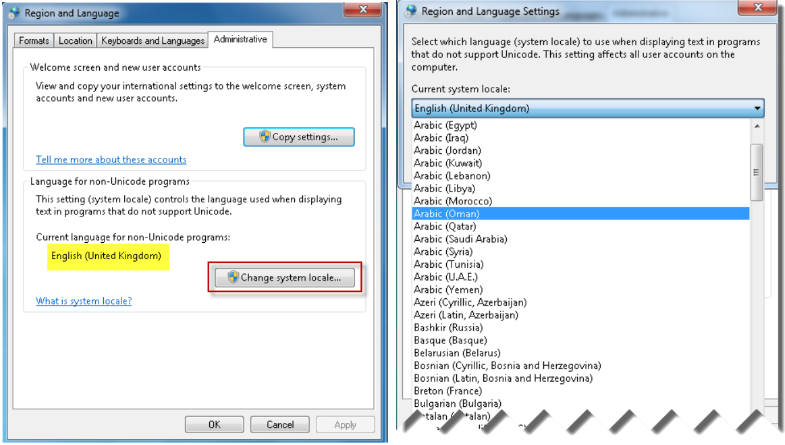
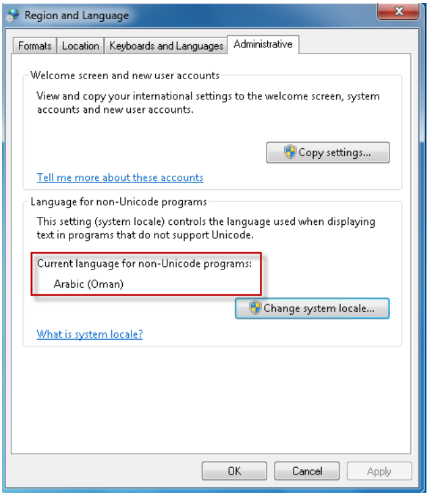
Verify that the Current language for non-Unicode programs is set to the desired language after
restarting Windows; in this example it’s set to Arabic.
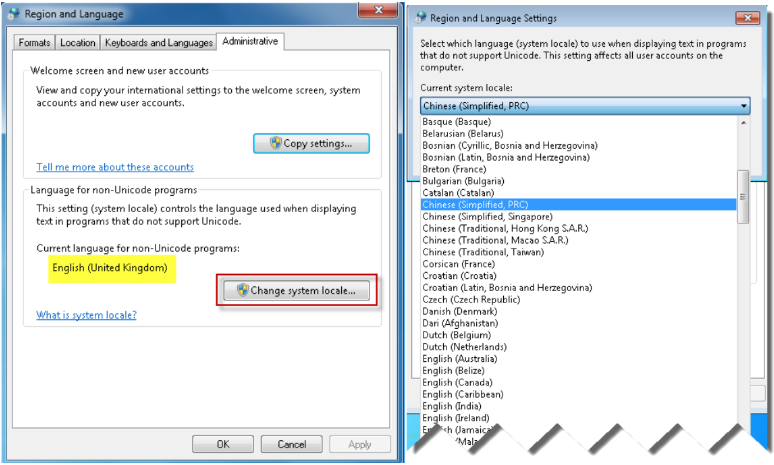
Region and Language settings for Chinese

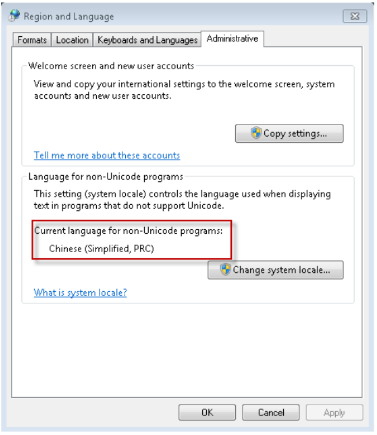
Verify that the Current language for non-Unicode programs is set to Chinese, after restarting
Windows.
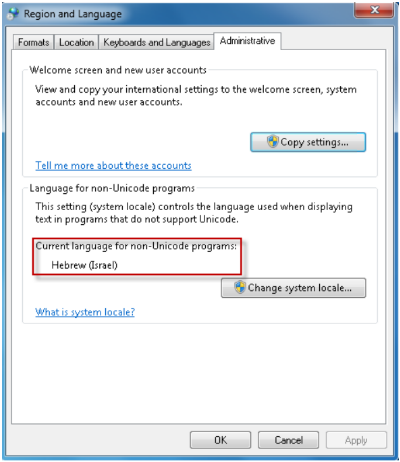
Region and Language settings for Hebrew
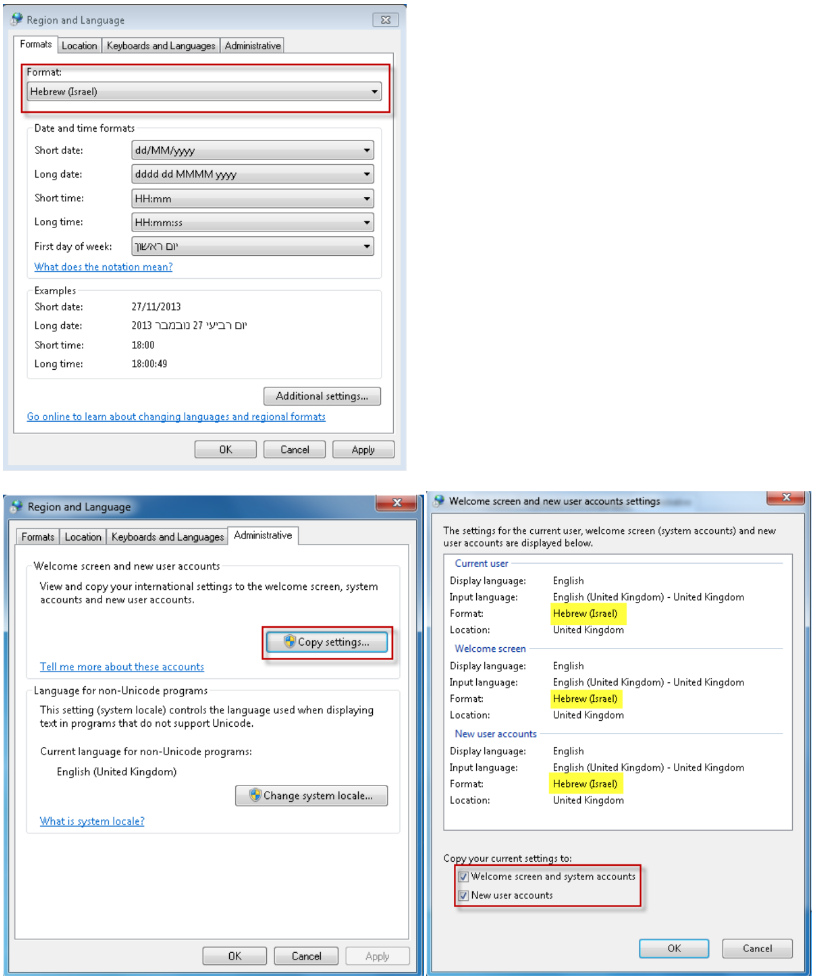
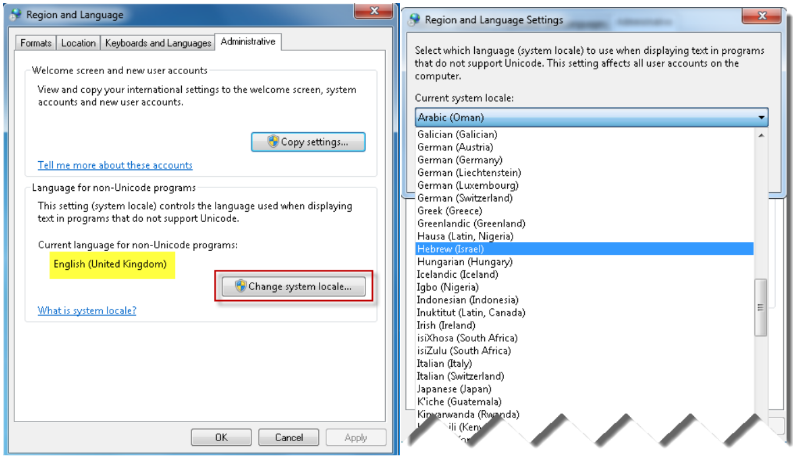
Verify that the Current language for non-Unicode programs is set to Hebrew, after restarting
Windows.
Comments
0 comments
Please sign in to leave a comment.