
Introduction
This document outlines the steps in order to upgrade the firmware on a Visualizer channel encoder.
This process can also apply to the Symmetry range of IP cameras. It covers the use of the IP Admin
Tool for this upgrade, it is recommended to always use the latest version. The IP Admin Tool requires
Microsoft Visual C++ 2008 SP1 Redistributable Package in order to run; which can be acquired here
(http://www.microsoft.com/download/en/details.aspx?id=5582).
Firmware Upgrade Process
1. Launch the ‘IPAdminTool.exe’, this can be located within the AdminTool folder.
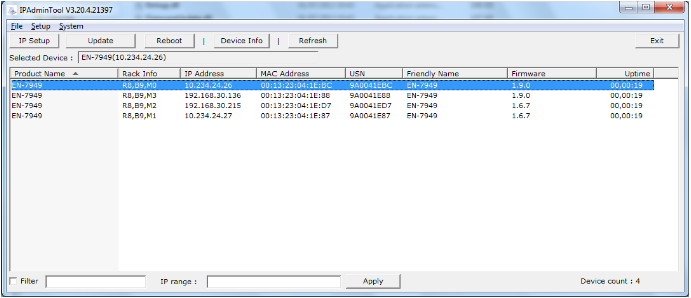
2. The Admin Tool will browse the network and discover any Visualizer channels it can find. It
will then display them in a list as shown below.
To upgrade a channel, first select the channel you wish to upgrade and then click the ‘Update’
button.
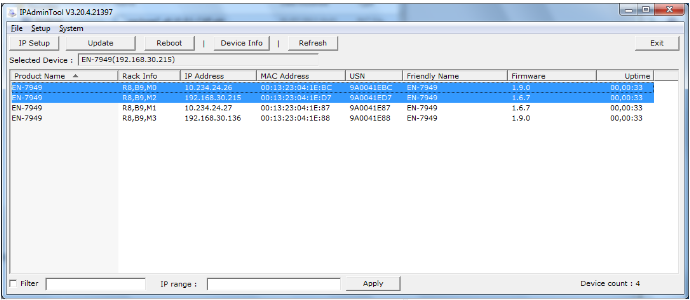
It is worth noting that the Admin Tool allows you to do multiple upgrades of the cameras in
one go; which saves a considerable amount of time. If you wanted to upgrade more than one
channel you will need to select them in the list before clicking the ‘Update’ button. This is
shown below.
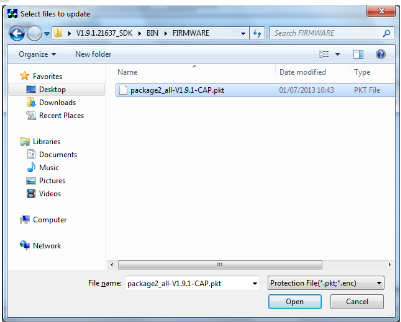
3. Upon clicking the ‘Update’ button it will launch the upgrade screen. Select the browse button
and browse to the given firmware file.
4. Now click ‘Update’
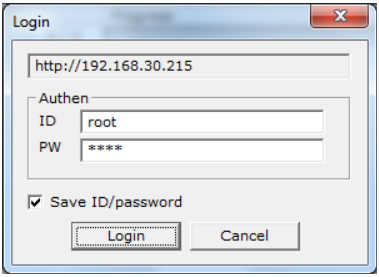
5. You will now be presented with a login box for the channel. Enter the correct credentials and
click ‘Login’.
6. The channel will then begin to be upgraded. The screen displays a progress bar. This is
useful to see the status of the upgrade if upgrading multiple units.
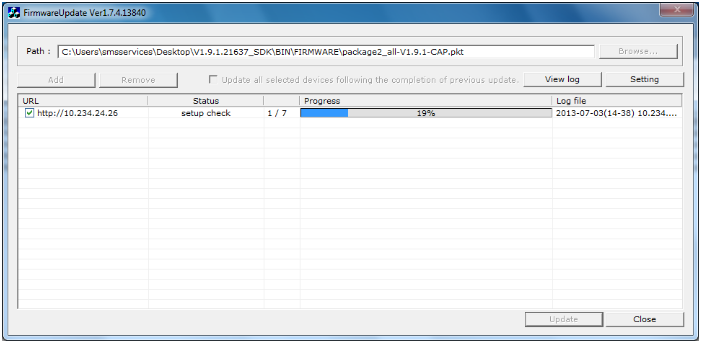
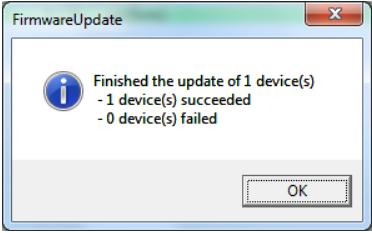
7. Upon completion you will be presented with a confirmation box displaying the details of
whether the upgrade succeeded or failed.
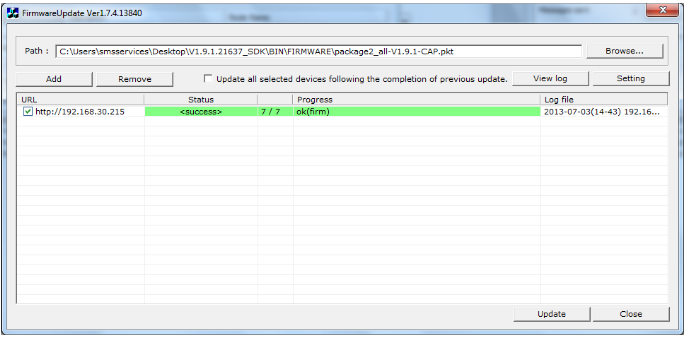
The upgrade screen will then display the details for the channel.
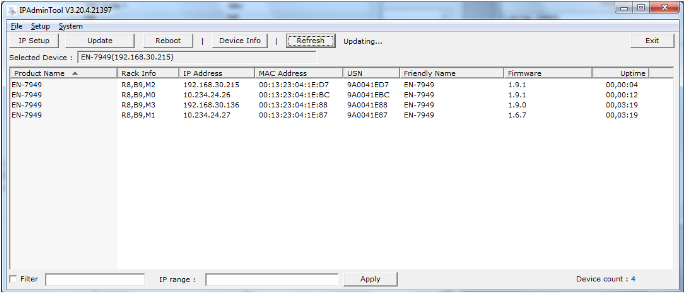
8. The unit will take some time to reboot upon a successful upgrade, and upon rebooting the
main Admin Tool window will display the unit and which firmware version it is now at.
Comments
0 comments
Please sign in to leave a comment.