
Introduction
This guide outlines the steps required in order to increase the maximum file size the NVR2 indexing
database can grow too. The default limitation is 1024, the steps increase it to 4096.
A 3rd party application is required for to make the change; this guide was written using „DB Browser
for SQLite‟ Version 3.9.1 Win 32.
Steps
1. Download „DB Browser for SQLite‟ from the internet.
2. Run the installer and accept all defaults
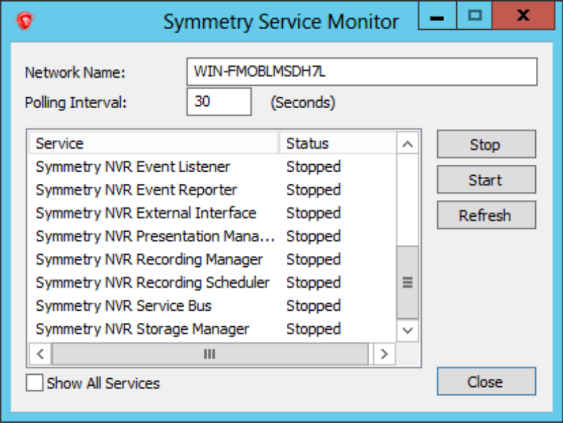
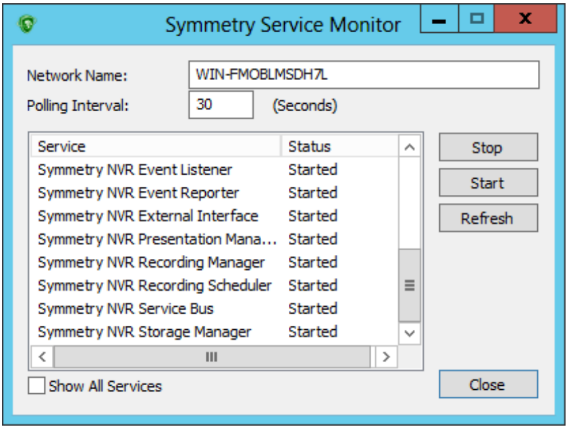
3. Stop all of the NVR2 Services via „Symmetry Service Monitor‟. This should be located in the
Windows Icon Tray; if not they can be stopped via Service Monitor under Windows Device
Manger.
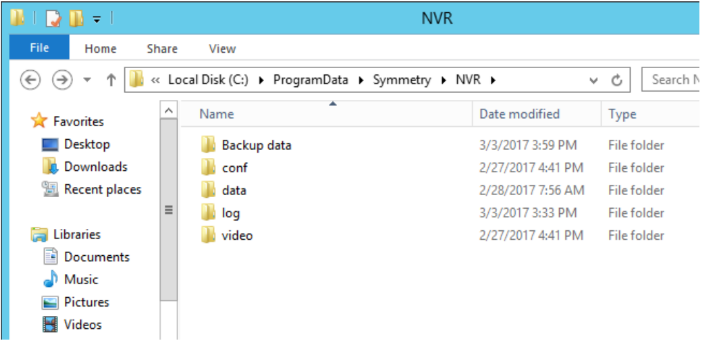
4. Make a Backup of the current Data folder for the NVR2. The folder location is:
C:\ProgramData\Symmetry\NVR\data
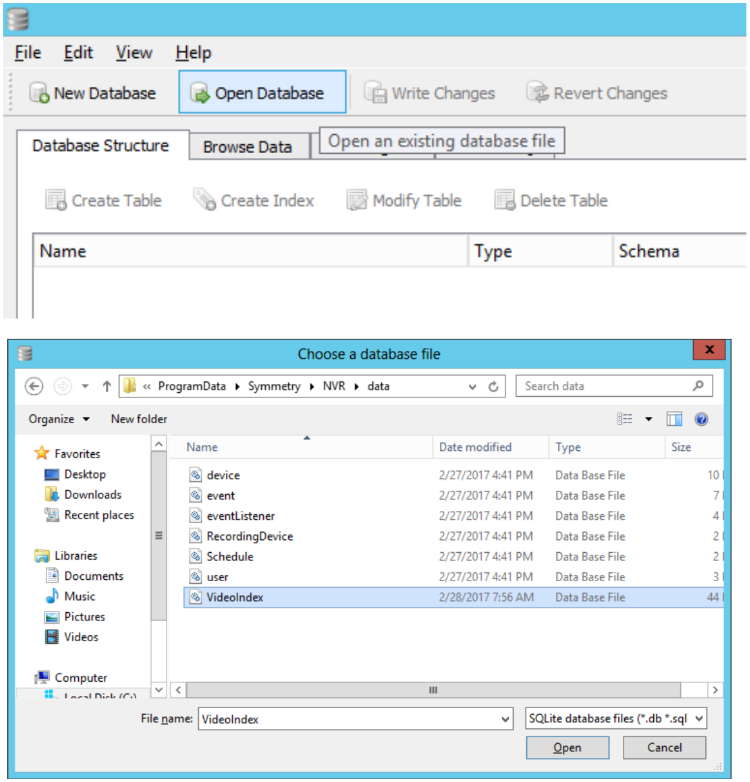
5. Launch „DB Browser for SQLite‟ via the Windows Start Menu. NOTE: You may have to right
click and open with Administrator.
6. Click „Open Database‟ and browse to the „Data‟ folder and select the „VideoIndex‟ file.
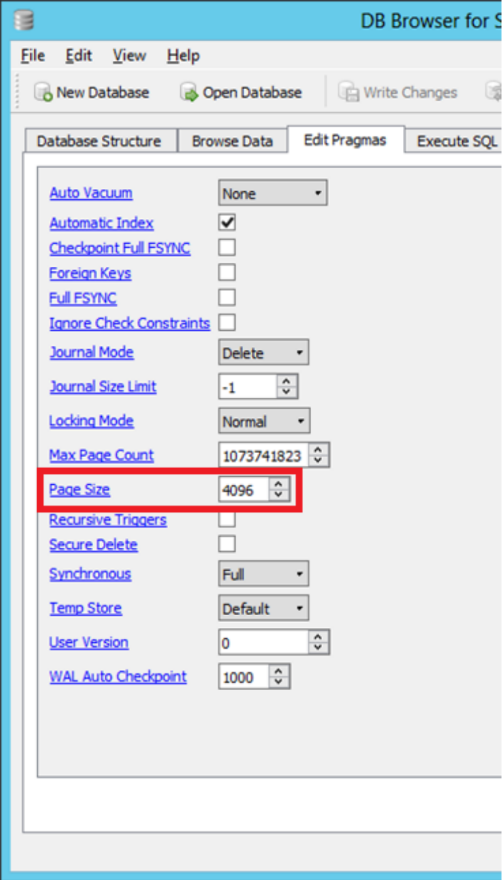
7. Select the „Edit Pragmas‟ tab.
8. Under „Page Size‟ set the value to “4096”, as shown below.
9. Press „Save‟ at the bottom of the screen.
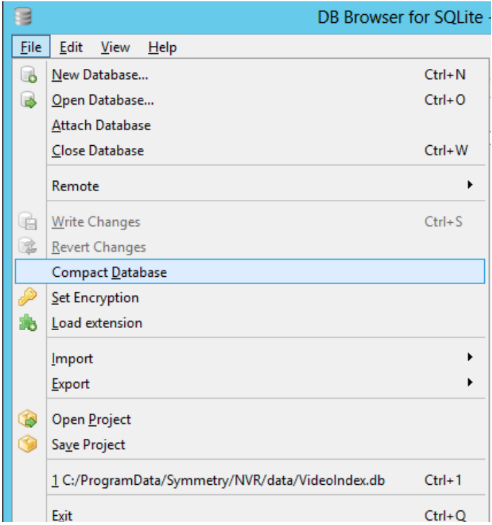
10. Press „File‟ then „Compact Database‟.
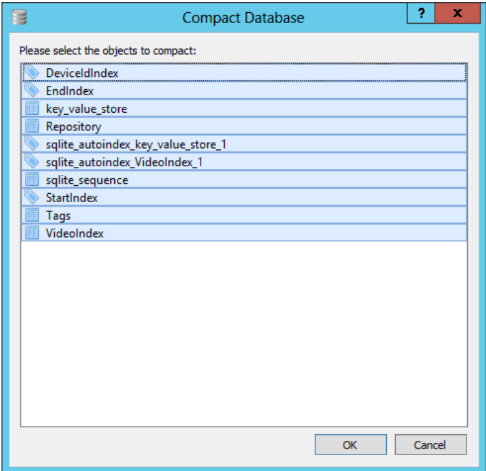
11. Select „OK‟
12. Exit „DB Browser for SQLite‟.
13. Open „Symmetry Service Monitor‟ and start the NVR Services.
14. Check Windows Event logs for any errors or warnings and also ensure within the Symmetry
system that video can be played back before and after the change has been made.
Comments
0 comments
Please sign in to leave a comment.