
Introduction
This guide details re-allocating SMS Chains to new or alternative Clients. This is particularly useful on
large older systems where Chains need to be moved from multiple Comms Clients onto a single
server solution.
Note: This guide covers amendments directly to the database so please approach this with caution.
The databases should always be backed up before making changes; this can be done under Tools or
Maintenance in Symmetry.
All SMS Services need to be stopped which can incur downtime.
Moving Chains to a New Client
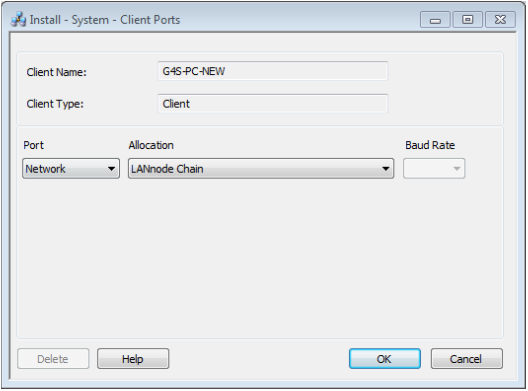
Firstly, create a new Client Port in SMS which is associated to the Client in which the Chains will be
moved onto; if the Client Port has already been added please take note of the Client Name. The Port
Type selected (i.e. Network, COM, etc.) must match the Port Type of the original Chain. There is a
separate guide available for converting Serial into LAN Chains, etc.
Close Symmetry and stop ALL SMS Services on the Server and Clients.
Open up Microsoft SQL Server Management Studio, available from Start | All Programs | Microsoft
SQL Server 2008 R2, and click ‘Connect’.
Under the Databases folder in Object Explorer right click ‘dbo.MachineTable’ and select ‘Edit Top 200
Rows’.
As below, take note of the value in the MachineID column for the machine which the Chains will be
moved onto. In this example it is 2.

Now open dbo.MachinePortTable (as done with the MachineTable) and find the MachinePortID
number that corresponds to the MachineID just noted (as shown on the next page).

Open the dbo.ChainTable as shown below, this table holds the MachinePortIDs that all Chains will be
associated to.
To move these Chains onto the new Client Port simply insert the MachinePortID just noted (2 in this
example) into the MachinePortID column. Once the value has been inserted press Enter so that the
change is updated in the database.
Before:

After:

Note: If there are a large amount of Chains to be updated then it is possible to update all at once
using SQL queries detailed below:
Updating all Chains in the Database to have the same Client Port
Caution: this will amend all Chains so they are all using the same Client Port!
In SQL Server Management Studio, click ‘New Query’ in the task bar. Type in the below query
amending SET MachinePortID = ‘2’ to the required MachinePortID value.

Once complete, click’ Execute’ in the task bar to run the script.
Updating specific Chains in the Database to have the same Client Port
If only Chains on a certain Client Port are to be amended then the following query can be executed.

SET MachinePortID = ‘2’ is to be amended to the required MachinePortID.
WHERE MachinePortID = ‘1’ is to be amended to the old MachinePortID (in which the Chains will be
moving from).
Once complete, click’ Execute’ in the task bar to run the script.
Close SQL Server Management Studio and re-start all SMS Services.
Post Checking
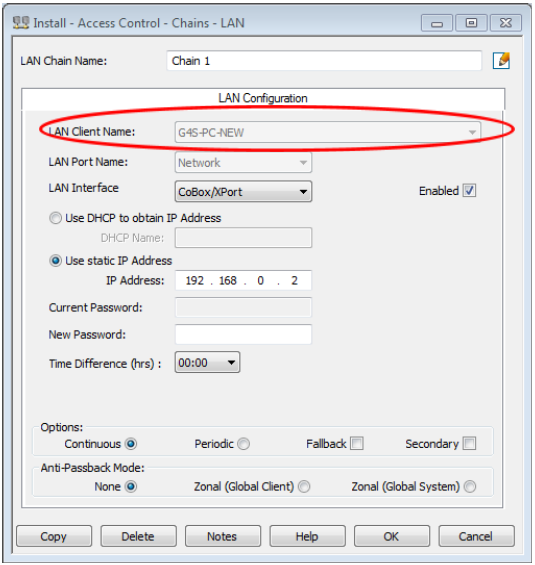
In Symmetry, check the Chain’s Install menu (as shown below) to confirm the Chain is now connected
to the correct Client.
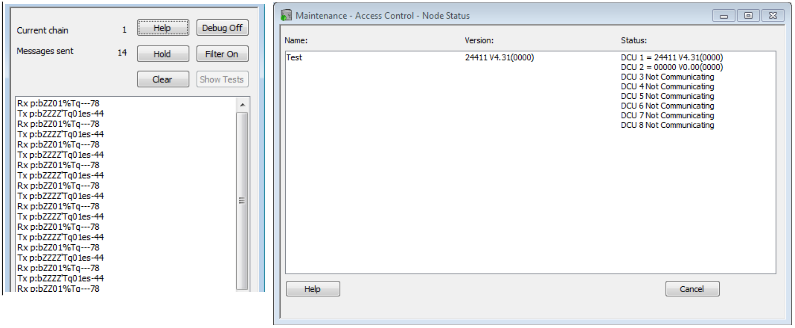
Check the Chain is communicating using Client Communications or Node Status (under Tools or
Maintenance).
Comments
0 comments
Please sign in to leave a comment.