
Introduction
This bulletin is a compilation of questions, comments and adjustments surrounding the NEC Express
Cluster solution for Symmetry.
Notes
There are discrepancies in the Cluster Installation Manual v8.1.0.0 9600-0406 as below:
1. There is a discrepancy in the required Firewall ports between the AMAG manual and the NEC
Manual.
On page 14, Chapter 4, and page 34, Chapter 5, in the network ports section, the AMAG manual
indicates port 29106 should be open as TCP, when the NEC manual indicates that port should be
open as UDP, which is the correct setting per NEC.
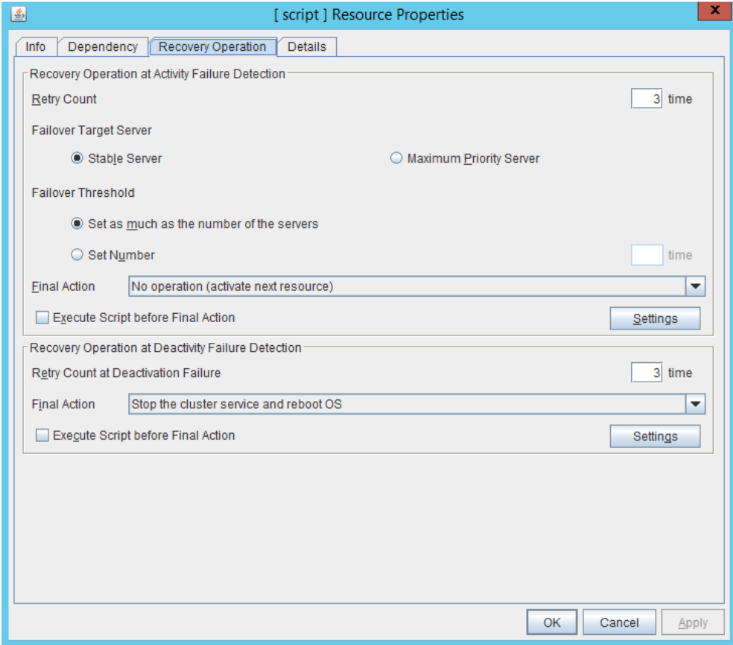
2. There is a unclear selection choice in the Installation procedure Recovery Operation page
Section E – step iii
On Page 16, Chapter 4, Section D, Section E, and Section F – step iii. The manual indicates to select
from the Final Action menu, to Stop the cluster service and reboot the OS. Unfortunately, there
are two Final Action Windows to choose from, but it fails to indicate which to choose from.
The correct choice here is In the Recovery Operation screen, specify a Final Action under
Recovery Operation at Deactivity Failure Detection of Stop the cluster service and reboot the OS.
Leave the Activity failure choice as default.
3. There is an error in the selection name in the Enable SysAdmin Permissions selection
a. On page 35, Chapter 5, Step 2 it indicates to choose User Roles, when it should
indicate Server Roles
2.2 Under User Server Roles, enable sysadmin.
4. We should not be using the DDNS resource as this is not supported by NEC and they will not
provide support should there be a system failure requiring them to decipher the logs for us.
a. NOTE: There may be an individual site requirement where the customer requires us
to use DDNS. If this is the case, we need to make them aware it is unsupported by
NEC and may hinder obtaining NEC assistance.
5. It is recommended that even though the Script resource is no longer required by NEC, we
should still use this resource to notify the Symmetry operators of any system failure which
causes a server move from one server to another.
a. This is accomplished by adding only one command in the Start.Bat and Stop.Bat commands
as follows.
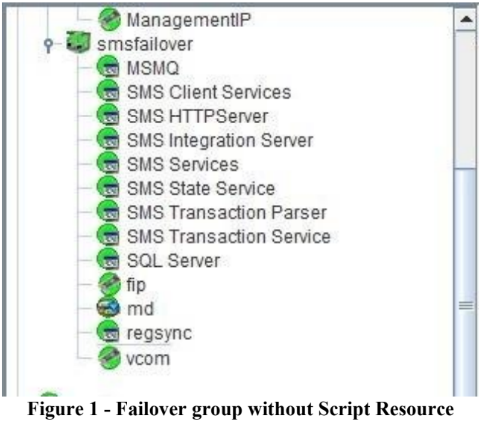
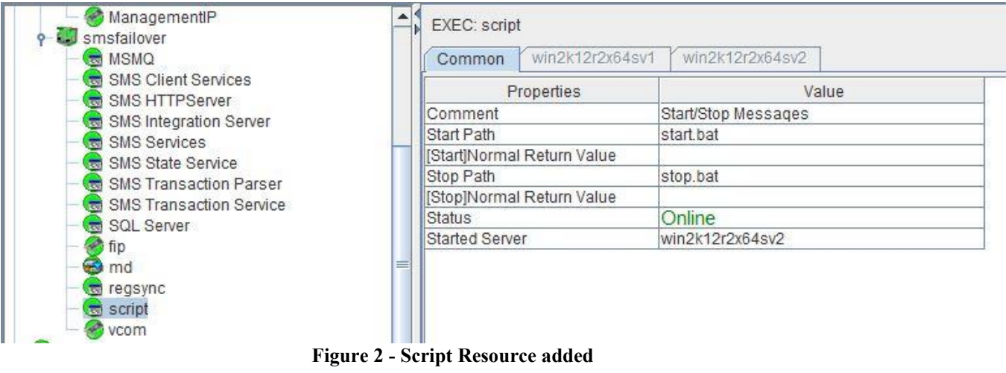
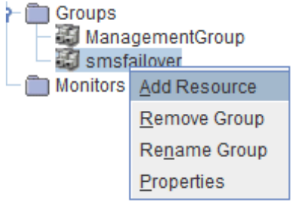
1. To add a Script Resource, right click the Failover Group from the Config Mode screen
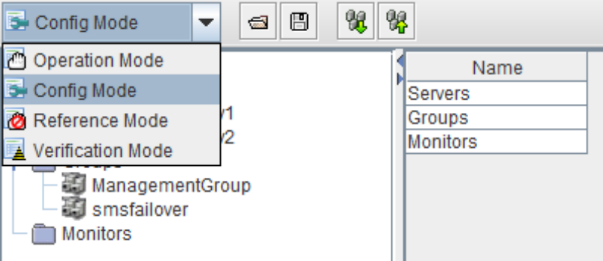
2. Select Add Resource
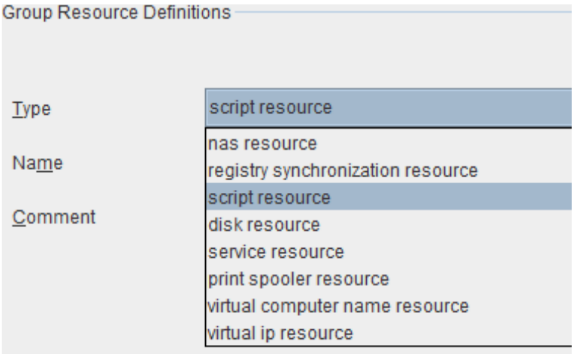
3. Select Script Resource
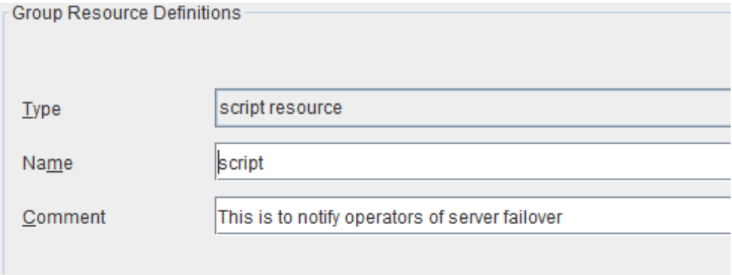
4. Leave the Name as default (Recommended) or provide a name to identify what the script
does
5. Provide a comment if desired
6. Select Next on the following screens to keep defaults and complete setup
7. Edit Start.Bat and Stop.Bat as shown below
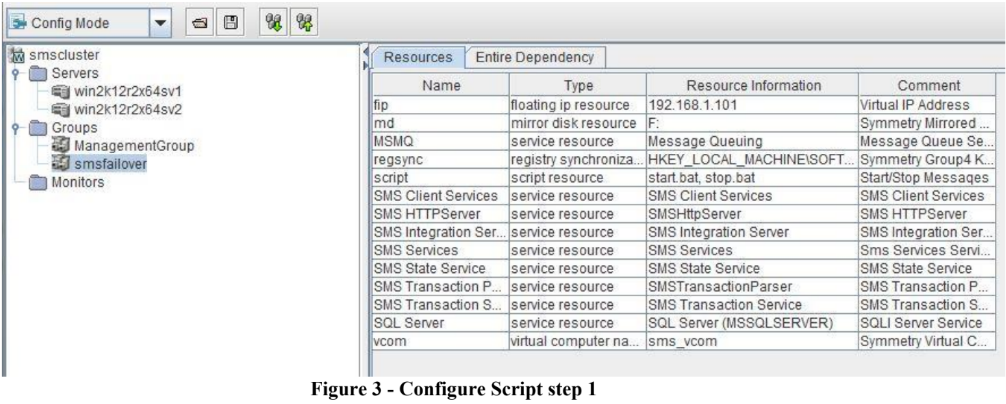
1. Highlight Failover Group
2. Right click Script
3. Select Properties
4. Follow screen prompts to Add, View, Replace, or Edit each file as follows.
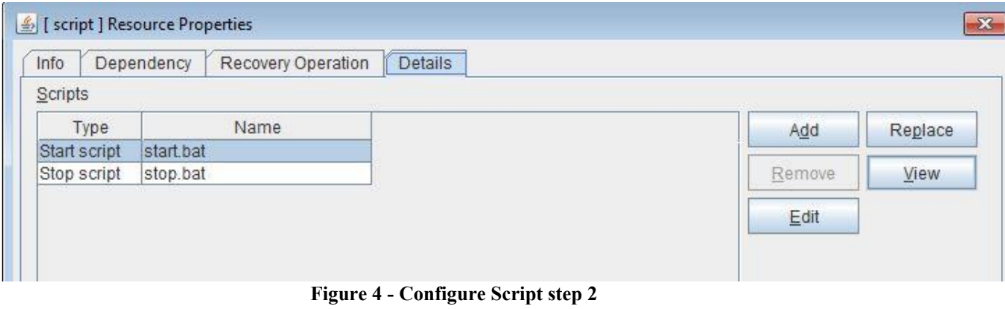
Start.Bat addition:
osql -d MultiMaxImport -E -Q "Declare @MachineName Nvarchar (50) Set @MachineName = (Select
MachineName From MultiMAx..MachineTable where LicensedClientType=3) Insert into
MultiMaxImport..TxnImportTable (TxnDateTime, WhatField, WhereField,
FirstName,LastName,TimeZone,AlarmPriority,AlarmColour,Alarm) Select GetDate(),'Clustered
Server','Symmetry Server','On-Line',@MachineName,'PST',20,1,0"
Stop.Bat addition:
osql -d MultiMaxImport -E -Q "Declare @MachineName Nvarchar (50) Set @MachineName = (Select
MachineName From MultiMAx..MachineTable where LicensedClientType=3) Insert into
MultiMaxImport..TxnImportTable (TxnDateTime, WhatField, WhereField,
FirstName,LastName,TimeZone,AlarmPriority,AlarmColour,Alarm) Select GetDate(),'Clustered
Server','Symmetry Server','Off-Line',@MachineName,'PST',20,4227327,1"
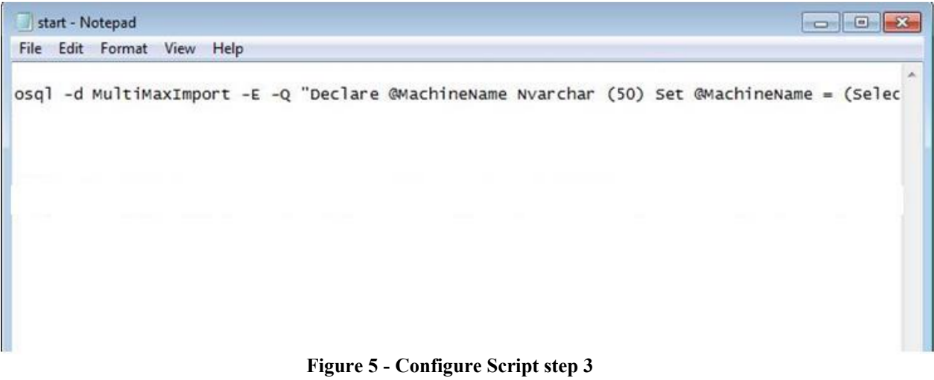
This script will announce the failover to client PC’s so security staff knows the servers moved to a
backup server, where it can be noted and per customer requirements either service now or at first
convenience
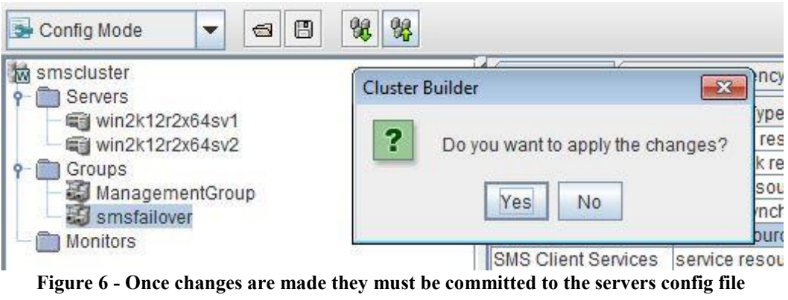
This writes the changes to the clp.config file, which is a large xml type file.
Remember to upload any changes to the Cluster upon completion
Comments
0 comments
Please sign in to leave a comment.