
Introduction
This guide details configuring email alarms using the SMTP (Simple Mail Transfer Protocol). Once
configured, alarms generated in Symmetry can be automatically sent to an SMTP compatible email
address.
Configuring SMTP Email Alarms
An SMTP e-mail client will need to be set up on the main SMS server (these are available online). It
should be possible to send and receive SMTP emails from the server using the accounts required.
To configure in Symmetry:
1. Create a new Alarm Routing configuration by accessing the ‘Alarm Routing’ menu (Operation->
Routing). Set the correct Company and specify ‘To client:’ as ‘E-mail Alarms’. Select the
Time Code options to choose when these alarms are to be received.
2. Go to Operation | Definitions and select the alarm and device required.
3. Select the Email tab and select SMTP as the ‘Mail Type’.
4. Enter the SMTP server’s IP address.
5. In the ‘Mail From Address’ menu, insert the email account to send from.
6. In the ‘Mail Alarm to’ menu, enter the email account you want to send the alarm to.
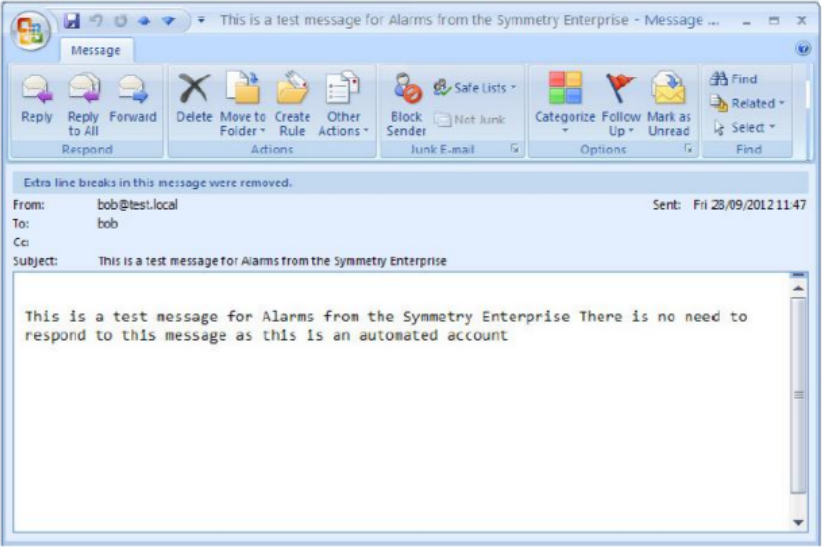
7. Click the Test button to send a test email to the address specified. Confirm the email has
been received (similar to below):
Comments
0 comments
Please sign in to leave a comment.