
Introduction
This guide outlines the way in which you can reduce the size of the database logs if you find the logs are getting large or if you are running out of disk space.
Each SQL server database has at least a data file and a transaction log file. Over time all the transactions and database modifications made to the database mount up. This can become an issue on Symmetry systems running Professional, especially V6.2, which runs MSDE with a 2GB limit.
Due to this you may be required to create a transaction log backup, the Full recovery mode on some Symmetry databases means that it will let the log file continue to grow until you take a full backup or run out of space. However, even a backup does not shrink the file; it only allows the space in the file to be reused leaving the file size intact.
Reducing the size of the log files
Ensure you take a backup of the current database you are modifying. It is recommended if you are changing either Multimax or MutimaxTXN that you make the change to both.
Please then follow the following steps to reduce the amount of data in the files:
Changing the Recovery Mode
Within Microsoft SQL Server Management Studio, right click on the database.
Select 'Properties'.
Select 'Options' from the left hand window.
Under 'Recovery model' changes this to 'Simple'.
Press 'OK' to close the window.

Please set Multimax and MultimaxTXN to this to keep it consistent.
Shrinking the Database
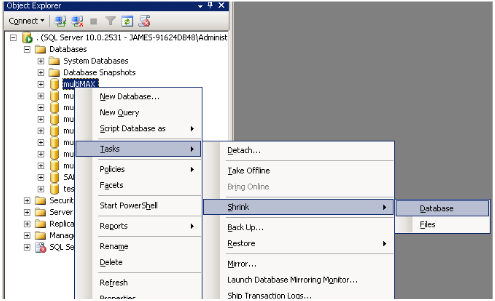
Right click the database.
Select ‘Tasks > Shrink > Database’.
Click ‘OK’
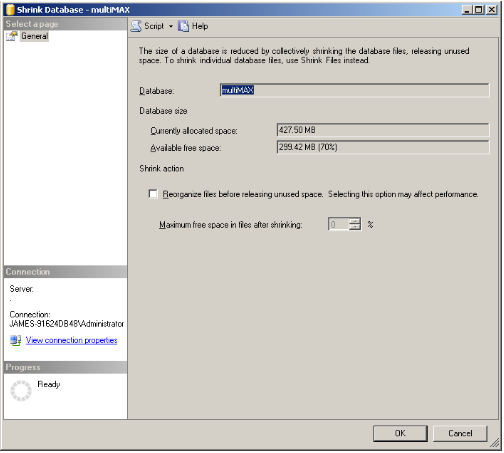
Example
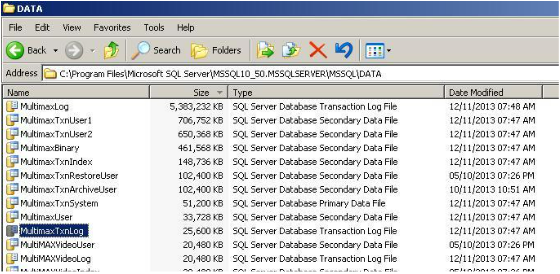
An example of the shrink is shown below.
Before:

After:
Comments
0 comments
Please sign in to leave a comment.