
Introduction
The below steps document how to setup Symmetry for use with the Symmetry Bluetooth readers.
Please be aware of the following..
- You must have V8.1 with Service Pack 1 installed
- You must wire this reader as per the installation document
- The panel that the reader is connected to must be set to Wiegand using the ‘W’ switch on the board and also you must have a WIM module inserted
Setting up the Reader
-
-
- To setup the Bluetooth reader in Symmetry you need to navigate to the Install > Access Control > Reader menu, then select the reader port the reader is wired into.
- You must then tick the box for ‘Display Additional Reader Types’. In the Reader Type drop-down you then need to select Bluetooth 32bt CSN
-

Setting up the USB Encoder
-
-
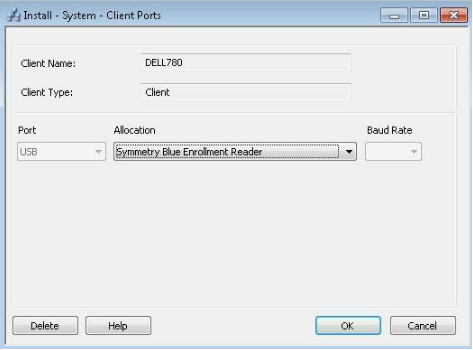
- To setup the USB encoder navigate to Install > System > Client Ports and press new.
- You must then select USB as the port and allocation as Symmetry Blue Enrolment Reader
-
Downloading the Mobile Application
You will need to download the Symmetry Blue Application from you Android or Apple app store. This is called SymmetryBlue and it’s a free application.
Enrolling your Device
To enroll your mobile application you must follow the below steps.
-
-
- Open the Symmetry cardholder screen and fill out all information you require for the specific person.
- You then need to click on the Bluetooth symbol located next to the card number.
-

-
-
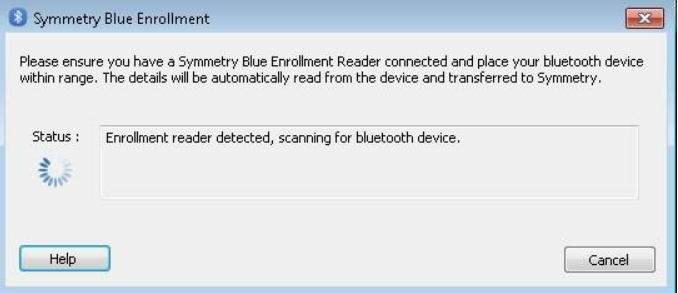
- You will then get a pop on screen looking for the Bluetooth device
-
-
-
- Ensure Bluetooth in enabled on your phone then open the SymmetryBlue mobile application.
- In the application you need to select ‘Enroll Device’.
-

Comments
0 comments
Please sign in to leave a comment.